Studio
Visual tour
Studio is a local web app that reads and writes your schema artifact directly — nothing leaves your machine. Launch it from your project root and your browser opens a seven-view UI for enriching tables, defining concepts, configuring tenant isolation, and testing natural-language questions against the SQL they generate.
npx askdb studioStudio reads outputDir from askdb.config.ts. Pass --schema <path> to override for a single run. By default it serves on http://127.0.0.1:5556 — change that with the --port and --host flags, or set studio.listen.port and studio.listen.host in askdb.config.ts (a CLI flag overrides the config for that run).
Guided setup
Section titled “Guided setup”Studio also works as the first command in a brand-new project. Run npx askdb studio in a directory with no askdb.config.ts (or no schema artifact yet) and Studio opens a setup wizard instead of erroring:
- Pick your database engine and AI provider. The wizard asks for environment variable names only — it never accepts secret values. Studio writes
askdb.config.tsand an.env.examplefor you. - Add your secrets to
.envyourself. The wizard shows exactly which variables to fill in; the values stay on your disk. - Run introspection from the browser. Studio reads your schema structure server-side (tables and columns — never rows) and opens the Overview when it’s done.
Setup actions (writing the config, running introspection) only work from loopback clients — a Studio exposed on a non-localhost host serves the UI but refuses those writes. Prefer the terminal? npx askdb init is the same wizard as a CLI prompt.
The loop
Section titled “The loop”The core Studio workflow is enrich → ask → re-enrich: add descriptions, aliases, and example questions to a table, then switch to the Playground and ask a question to see the generated SQL. If the answer isn’t what you expected, go back, tighten the enrichment, and re-ask — all without leaving the browser tab. Repeating this loop is what makes generation reliable for the vocabulary your team actually uses.
Overview
Section titled “Overview”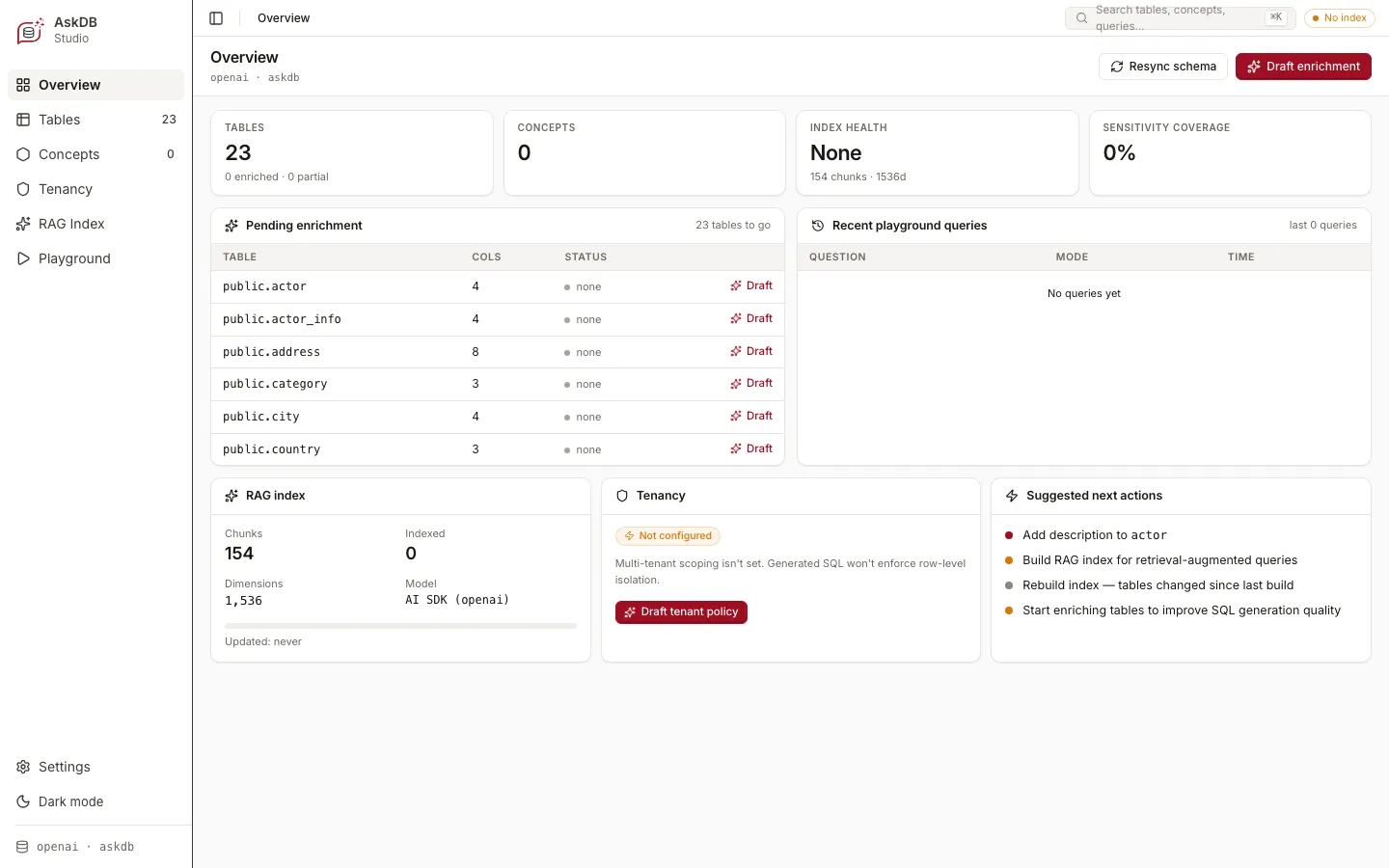
The Overview dashboard shows the health of your schema artifact at a glance: how many tables are enriched, how many are still at the default “none” state, RAG index status (chunk count and model), tenancy configuration, and a prioritised list of suggested next actions. Use it as your starting point to see where enrichment effort will have the most impact.
Resync schema re-runs introspection without leaving the browser, using the connection configured in askdb.config.ts — the same resolution as a flag-free askdb introspect. The physical layer (schema.json) is regenerated; your enrichment markdown is preserved, exactly as with the CLI. Like the setup wizard, resync only works from loopback clients.
Tables and enrichment
Section titled “Tables and enrichment”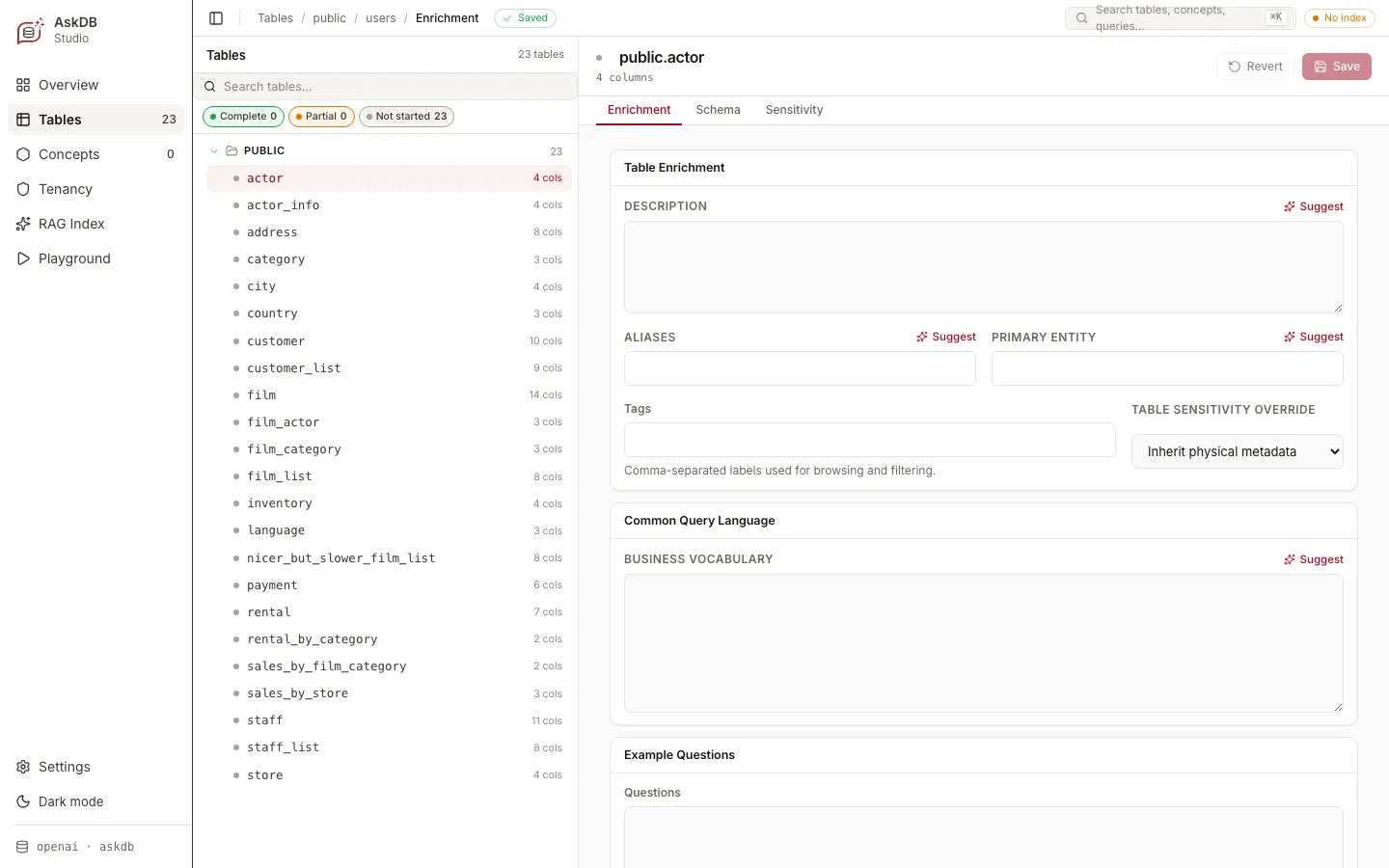
The Tables view lists every physical table in your schema. Select a table to open its detail panel with three tabs:
- Enrichment — write a description, set aliases (the names users actually use when asking questions), declare a primary entity, add comma-separated tags, capture business vocabulary in the Common Query Language field, and add example questions.
- Schema — view the raw column list with types and nullability.
- Sensitivity — mark columns like
email,ssn, orinternal_notesas sensitive so the prompt layer can tag or omit them.
Each field has a Suggest button: provide a model key and Studio drafts a proposal for your review. Suggestions are never applied automatically — a human confirms every change before it lands in the artifact.
Concepts
Section titled “Concepts”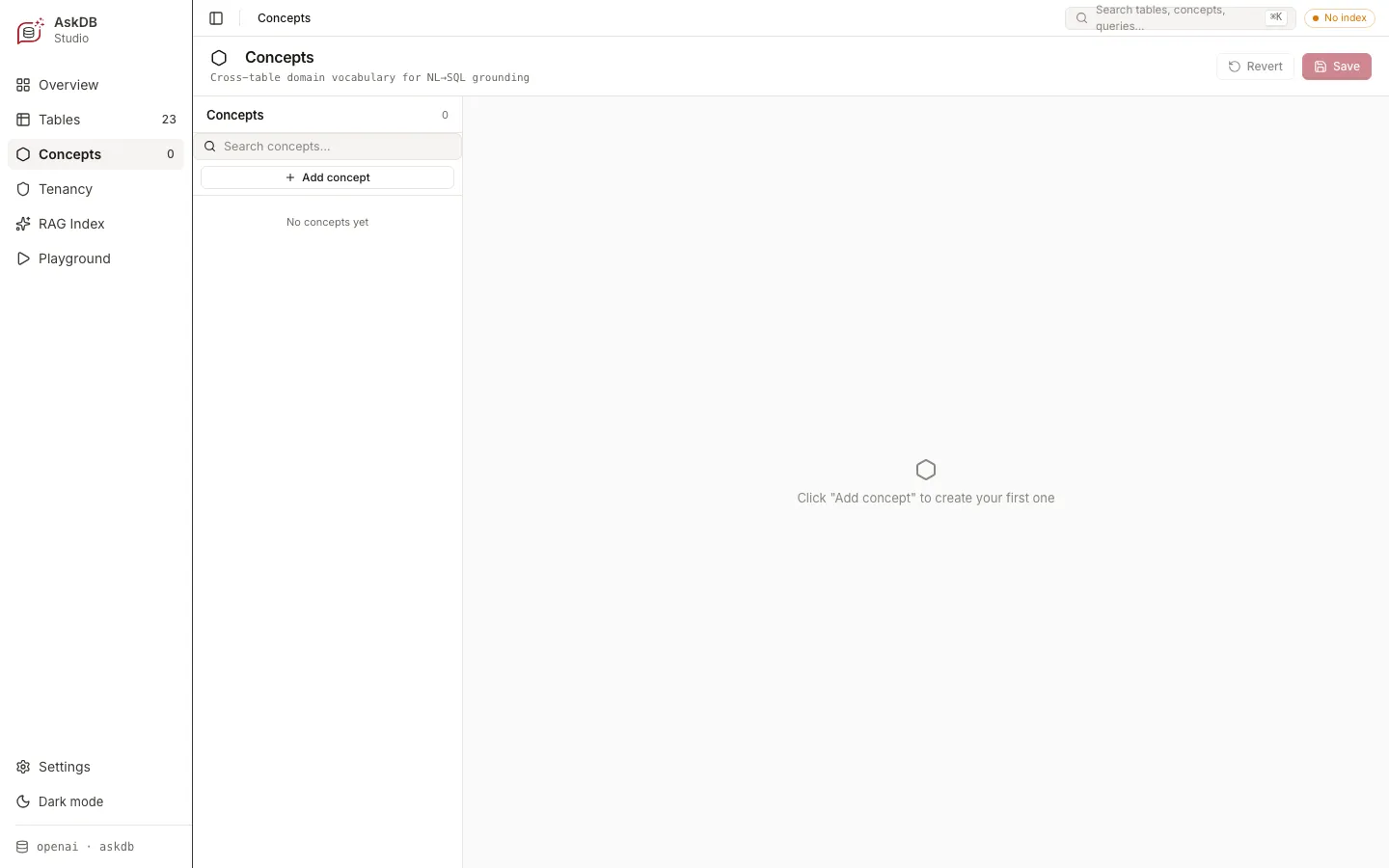
Concepts capture cross-table business vocabulary that doesn’t map to a single table — things like “active subscription”, “paid order”, or “customer” in a schema where that meaning spans several joined tables. Add a concept, write a description, and the model uses it when constructing prompts. Start with the terms your team reaches for most when they talk about the data.
Playground
Section titled “Playground”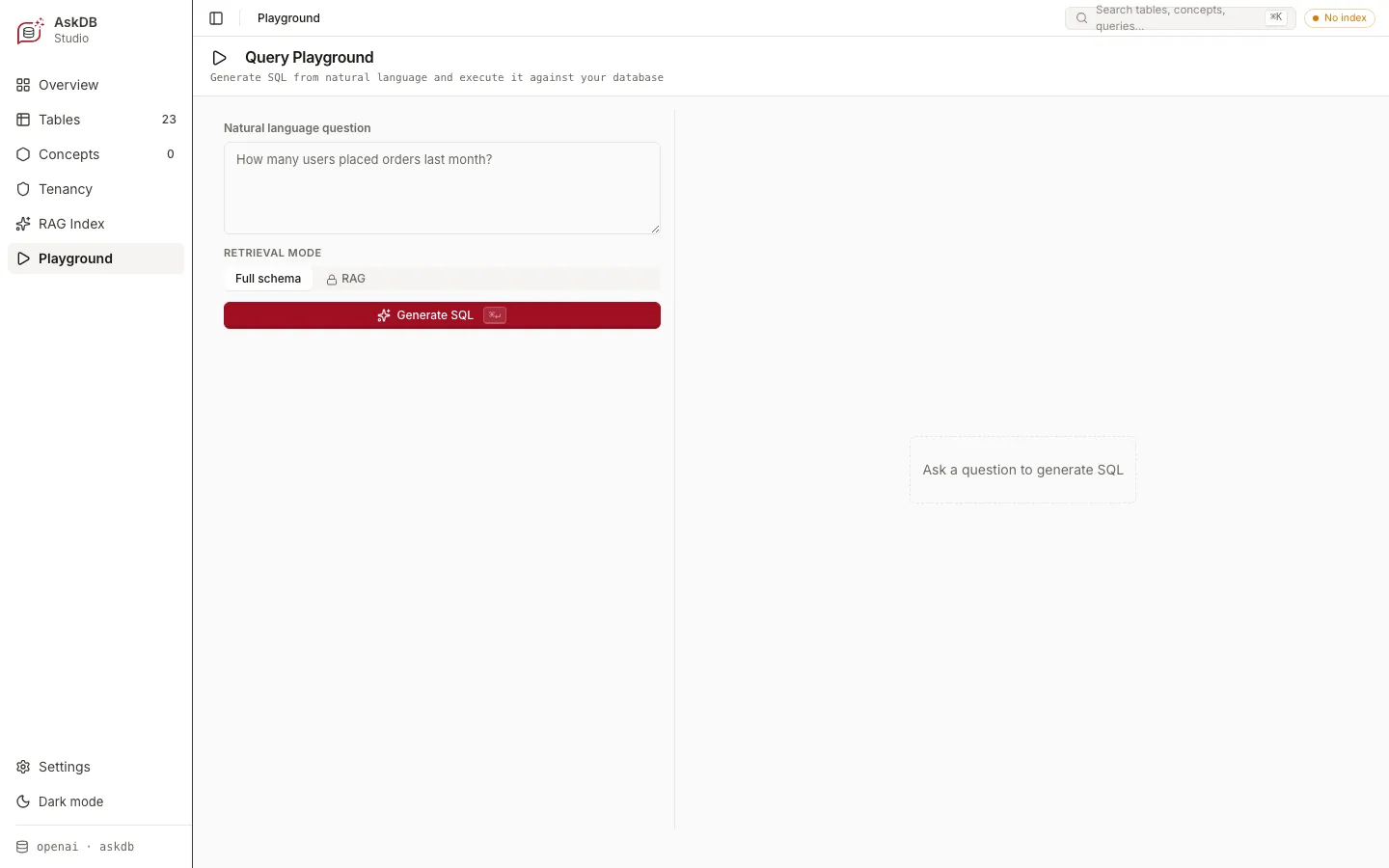
The Query Playground is where you test whether your enrichment is working. Type a question in plain language, choose between Full schema (send the entire enriched artifact) or RAG (retrieve only the relevant chunks), and click Generate SQL. The generated SQL appears alongside the retrieval context so you can see exactly what the model was given. If the SQL is wrong, the enrichment fields that need fixing are usually obvious from the context shown.
Generating SQL in Studio does not require a database driver. The optional Execute Query action runs the generated SQL against a live database and displays the results in the Playground. Studio supports Postgres, MySQL, SQLite, and SQL Server.
Get the code
Section titled “Get the code”Once the SQL looks right, the Get the code panel below it turns the session into an integration snippet: your exact question, schema path, resolved dialect, configured AI provider, and (when enabled) the tenant scope — rendered as ready-to-paste TypeScript. Toggle between the config-driven style (createAskDb() from @askdb/client, reading the same askdb.config.ts Studio uses) and the direct style (ask() from @askdb/core with an explicit model). Copy it into your service and continue with Embed in a Node app.
Execute provider
Section titled “Execute provider”Studio automatically selects the execute provider from your config. When studio.execute.provider is not set, Studio uses the active introspection provider when it is a live engine (Postgres, MySQL, SQLite, or SQL Server). If the introspection provider is Prisma (schema-only), Studio defaults to Postgres for backward compatibility.
You can override the provider explicitly in askdb.config.ts:
export default defineConfig({ studio: { execute: { provider: "mysql", // "postgres" | "mysql" | "sqlite" | "sqlserver" databaseUrl: "mysql://...", // for network databases // file: "./local.db", // for SQLite }, },});Or set it via environment variable:
ASKDB_STUDIO_EXECUTE_PROVIDER=mysqlASKDB_STUDIO_DATABASE_URL=mysql://user:password@localhost/mydbDriver packages
Section titled “Driver packages”Each execute provider requires its database driver package. These are optional peer dependencies — you only install the one you need:
npm install mysql2pnpm add mysql2yarn add mysql2npm install better-sqlite3pnpm add better-sqlite3yarn add better-sqlite3npm install mssqlpnpm add mssqlyarn add mssqlThe Query Playground shows the configured provider and driver readiness near the Execute button. If the driver is missing, Studio displays an Install button (local Studio only) or the exact manual install command.
Driver packages are optional peers, not hard dependencies. This keeps install size minimal: Postgres users do not pay for MySQL or SQL Server clients and vice versa. The packages are listed as dev dependencies in @askdb/studio for local package development and CI type-checking — that does not mean your application must install all of them.
Tenancy
Section titled “Tenancy”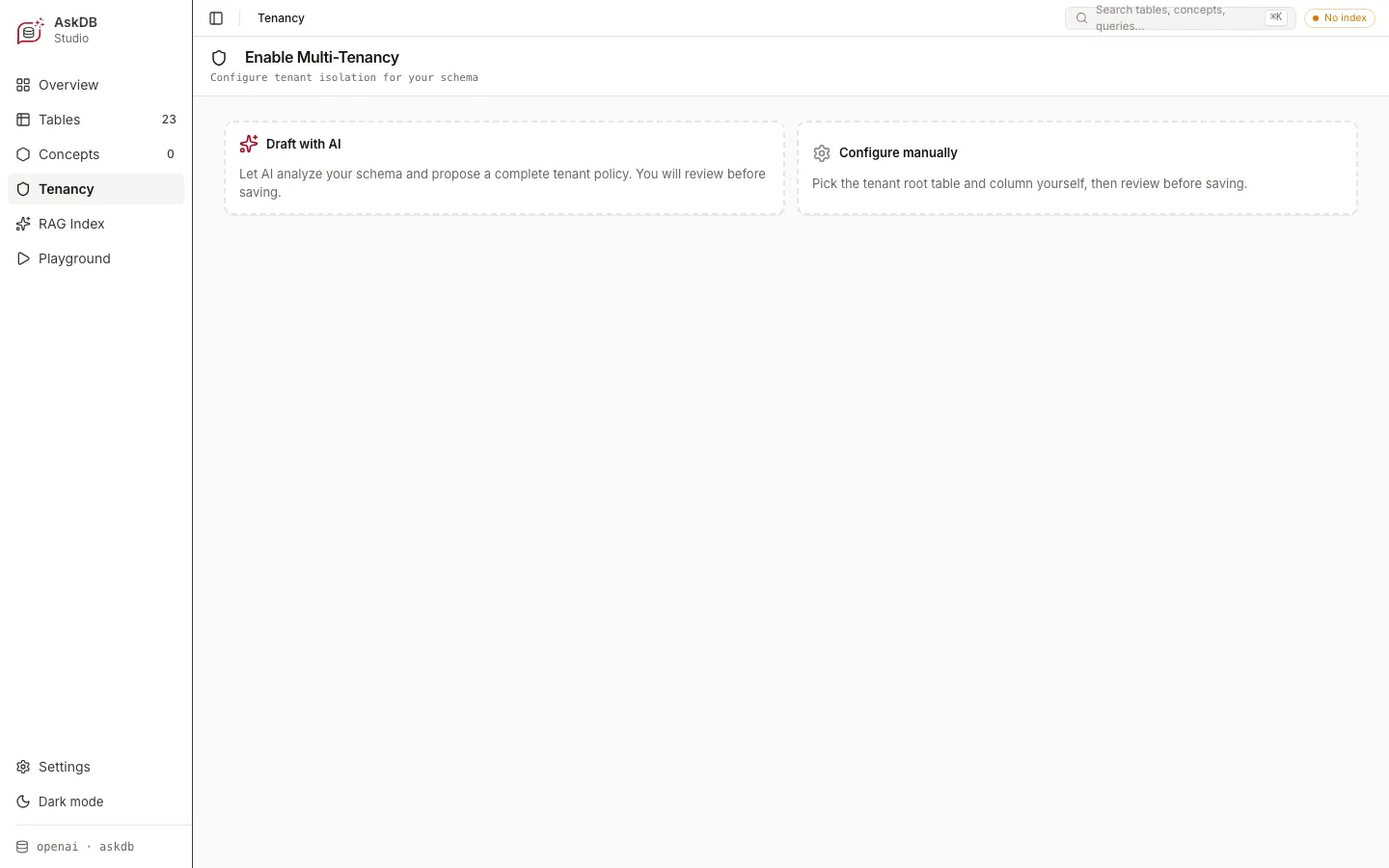
The Tenancy view is where you declare tenant isolation for multi-tenant schemas. Choose Draft with AI to let Studio analyse your schema and propose a tenant policy for your review, or Configure manually to pick the tenant root table and column yourself. Once configured, the Playground enforces tenant scope on every generated query and lets you test with different tenant IDs. See Multi-tenancy for the full walkthrough.
Studio and your data
Section titled “Studio and your data”Studio binds to 127.0.0.1 by default — it is not reachable from outside your machine without an explicit host override. The model only ever sees schema text (table names, column names, descriptions, concepts): it never reads your actual rows. AI features — enrichment suggestions, tenant policy drafts, NL→SQL generation — are optional and only active when a model API key is configured in your environment.
Read next
Section titled “Read next”© 2026 Yahya Gilany